
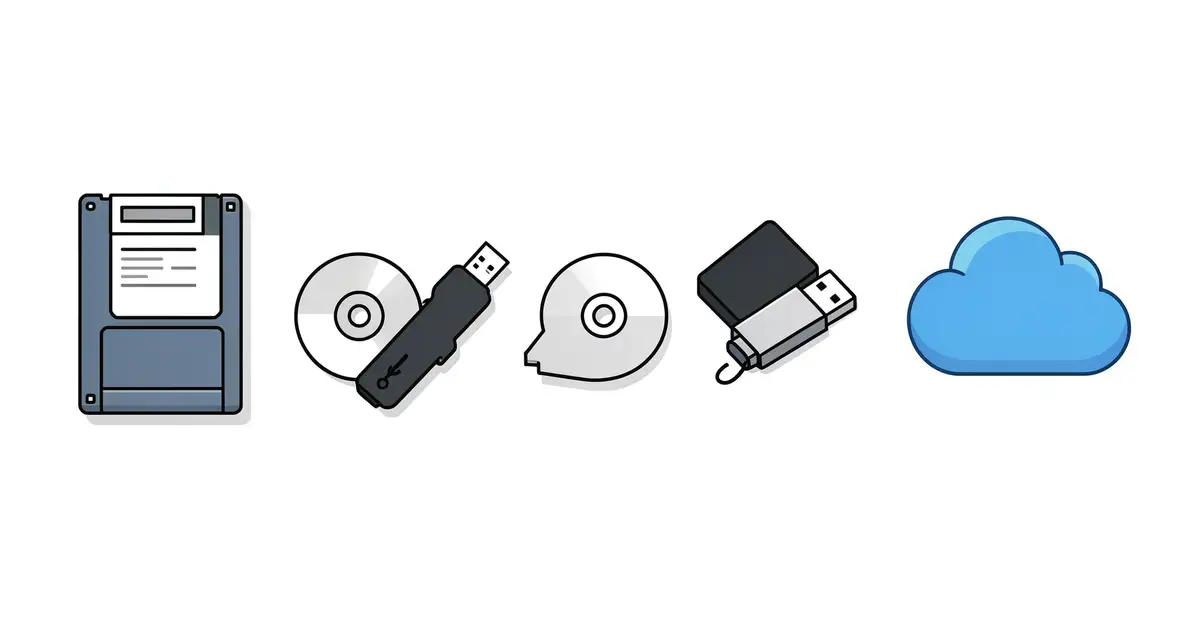
From floppy disks to cloud servers, the evolution of computer storage technology has transformed how we create, share, and preserve information. Understanding this journey helps you make smarter decisions about everything from buying a new laptop to backing up family photos.
This article breaks down each major leap in storage—magnetic tape, hard drives, optical discs, flash memory, and the cloud—in plain language. You’ll learn what changed, why it matters, and practical tips for choosing the right storage for your needs today.
Introduction
Every photo you save, every document you write, and every application you launch depends on one silent workhorse: computer storage. From the punch cards of the 1950s to the solid-state drives inside today’s ultra-thin laptops, storage technology has transformed how we create, preserve, and access information. This article explores The Evolution of Computer Storage Technology with clear, practical guidance. Whether you are choosing a drive for a new PC, planning a backup strategy, or simply curious about the hardware behind your digital life, understanding where storage has been helps you make smarter decisions about where it is going.
The journey is not just a history lesson. Each leap—from magnetic tape to hard disks, from optical media to flash memory—solved a specific problem and introduced new trade-offs. Recognizing those trade-offs is the key to matching the right storage solution to your actual needs, rather than chasing specifications you may never use.
Key Concepts
Before diving into the timeline, it helps to define the terms that appear repeatedly in any storage discussion. These concepts form the vocabulary you need to compare technologies fairly.
- Capacity: How much data a device can hold, measured in megabytes (MB), gigabytes (GB), or terabytes (TB). One terabyte equals roughly 1,000 gigabytes.
- Speed (throughput and latency): Throughput is how fast data moves; latency is the delay before a transfer begins. Solid-state drives (SSDs) win on both, but legacy hard disk drives (HDDs) still offer high throughput for sequential files.
- Volatility: Volatile storage (like RAM) loses data when power is cut. Non-volatile storage (like SSDs, HDDs, and USB flash drives) retains data without power.
- Access method: Sequential access (tape) reads data in order; random access (disks and flash) can jump to any location instantly. Random access enabled databases, operating systems, and multitasking.
- Cost per gigabyte: The economic driver behind every storage shift. When a new technology’s cost per gigabyte falls below the old one’s, adoption accelerates.
- Endurance and reliability: How many write cycles a device survives and how long it retains data. Enterprise drives are rated for heavier workloads than consumer models.
Understanding the fundamentals of The Evolution of Computer Storage Technology helps you make informed decisions. When a salesperson quotes a “fast SSD,” you will know to ask about interface type (SATA vs. NVMe), read/write speeds, and TBW (terabytes written) rating—not just capacity.
Deep Dive
The Punch Card and Tape Era (1950s–1960s)
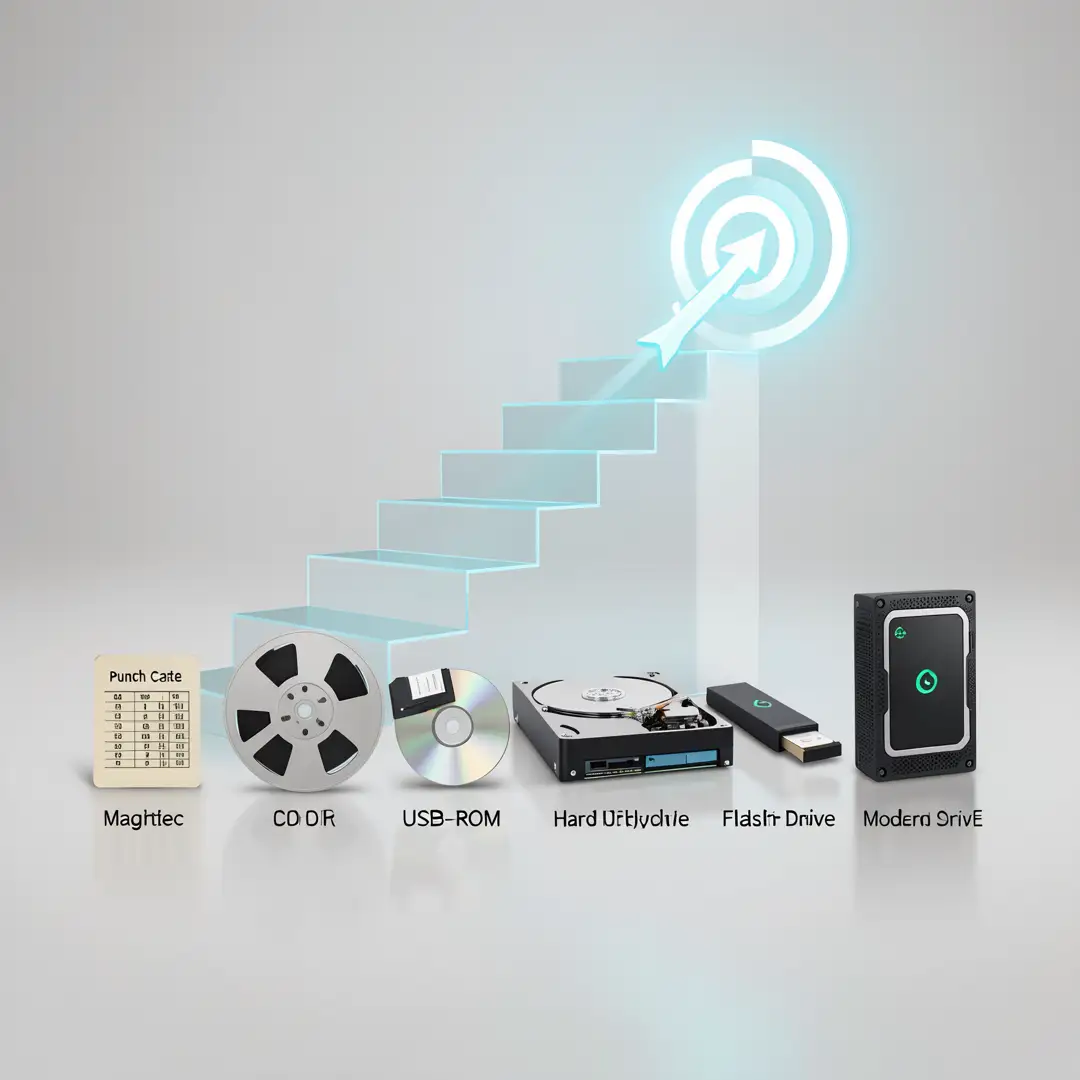
Early computers stored data on punched cards and magnetic tape. A single card held less than 100 characters; a reel of tape might hold a few megabytes. Tape offered cheap, sequential storage for batch processing, but finding a single record meant winding through the entire reel. This era established a pattern that persists today: fast access costs more, cheap storage is slower.
The Rise of the Hard Disk Drive (1956–1980s)
IBM’s RAMAC (1956) introduced the first hard disk drive: 5 MB of storage on fifty 24-inch platters, costing roughly $10,000 per megabyte in today’s terms. The breakthrough was random access—a read/write head could move directly to any track. Over the following decades, HDDs shrank while capacities exploded. By the late 1980s, personal computers shipped with 20–40 MB drives. The 1990s brought gigabytes, and the 2000s delivered terabytes. Magnetic storage became the default for both primary and backup data because its cost per gigabyte fell faster than any competing technology.
Optical Media and the Removable Storage Craze (1980s–2000s)
CDs (1982), DVDs (1995), and Blu-ray discs (2006) offered portable, durable storage for software, music, and video. Floppy disks gave way to Zip disks, then to USB flash drives and memory cards. Optical media excelled at distribution—a single DVD held 4.7 GB—but write speeds were slow, and rewritable formats suffered from limited cycles. As broadband internet replaced physical distribution, optical drives began disappearing from laptops.
The Flash Revolution (2000s–Present)
NAND flash memory, first commercialized in the late 1980s, changed everything when it reached viable capacities and prices in the 2000s. USB thumb drives replaced floppies. SD cards powered cameras and phones. Most importantly, solid-state drives (SSDs) eliminated spinning platters and moving heads. An SSD can boot an operating system in seconds, survive drops that would kill an HDD, and consume far less power. Early SSDs were small and expensive; today, a 1 TB NVMe SSD costs less than a modest dinner for two.
Cloud Storage and the Hybrid Present
Since the late 2000s, cloud storage has shifted the question from “how much can I hold locally?” to “where should this data live?” Services like Google Drive, Dropbox, and iCloud synchronize files across devices, while object storage (Amazon S3 and similar) underpins countless apps. Many users now run a hybrid setup: fast local SSD for active work, HDD or network-attached storage (NAS) for bulk archives, and cloud for off-site backup and collaboration. The evolution is not linear replacement—it is layering, where each technology finds its niche.
Reliable information and consistent habits lead to better long-term outcomes. Knowing that HDDs remain cheaper per terabyte for cold data, that SSDs dominate for speed, and that cloud services add redundancy helps you build a storage stack instead of betting everything on one device.
Best Practices
Storage decisions pay off when they follow a few durable principles. These practices apply whether you manage a single laptop or a small business network.
- Follow the 3-2-1 backup rule: Keep at least three copies of important data, on two different types of media, with one copy off-site (cloud or a physically distant drive). This protects against drive failure, theft, fire, and ransomware.
- Match storage type to workload: Use NVMe SSDs for operating systems, databases, and video editing. Use HDDs or tape for large archives you rarely access. Use cloud storage for sharing and off-site redundancy.
- Leave free space on SSDs: Keeping 10–20% of an SSD unallocated helps the controller manage wear leveling and maintains write performance.
- Monitor drive health: Tools like CrystalDiskInfo (Windows) or smartmontools (Linux/macOS) read S.M.A.R.T. data to warn you before a drive fails. Check quarterly.
- Encrypt sensitive data: Use BitLocker, FileVault, or VeraCrypt for local drives, and verify that cloud providers encrypt data at rest and in transit.
- Test your restores: A backup you have never restored is a hope, not a plan. Restore a sample file every few months to confirm your process works.
- Plan for growth: Buy 20–30% more capacity than you need today. Storage fills up faster than expected, especially with photos, videos, and game installations.
Step-by-Step Guide to Choosing and Managing Storage
The following steps turn storage theory into a practical routine. Work through them in order, and you will end up with a setup that fits your budget and your data.
Step 1: Understand the fundamentals
Review the key concepts above—capacity, speed, volatility, access method, cost, and endurance. Write down which ones matter most for your situation. A gamer cares about read speed and capacity; a photographer cares about write speed, card reliability, and backup redundancy; an office worker may prioritize cloud sync and encryption. Without this step, you risk buying based on marketing rather than need.
Step 2: Assess your starting point
Audit what you currently own and how full it is. Check total capacity, free space, drive type (HDD or SSD), and age. On Windows, open File Explorer and check drive properties; on macOS, use About This Mac > Storage. Note any drives older than five years—they are approaching the end of their reliable lifespan. Also list what you store: documents, photos, videos, virtual machines, game libraries. This inventory reveals whether you need more speed, more capacity, or both.
Step 3: Set clear goals
Define specific, measurable targets. Examples: “Boot the PC in under 15 seconds,” “Store 5 TB of raw video with room to grow,” “Keep an off-site backup updated weekly,” “Spend less than $150.” Goals should address performance, capacity, redundancy, and budget. Vague aims like “get better storage” lead to overspending or disappointment. Write your goals down and rank them; when two goals conflict (maximum speed vs. minimum cost), the ranking tells you which to prioritize.
Step 4: Gather necessary resources
Based on your goals, list the hardware, software, and services you need. Hardware might include an NVMe SSD, an external HDD enclosure, a NAS unit, or a larger SD card. Software includes backup utilities (Acronis, Macrium Reflect, Time Machine) and health-monitoring tools. Services include cloud backup plans (Backblaze, iDrive) or sync platforms (Dropbox, Google Drive). Also budget for cables, adapters, and potentially a drive cloning tool if you are migrating an existing system. Check compatibility before buying: interface (SATA, NVMe, USB 3.2, Thunderbolt), form factor (2.5-inch, M.2, 3.5-inch), and power requirements.
Step 5: Apply the core methods
Now execute. If upgrading a boot drive, clone your existing system to the new SSD using manufacturer software, then swap the drives and verify boot. If adding bulk storage, format the new drive, assign a drive letter or mount point, and move large archives off your primary drive. Set up your 3-2-1 backup scheme: configure automatic local backups to an external drive and cloud backups for critical folders. Enable encryption. For cloud-only workflows, organize folders deliberately—separate “active” from “archive”—and use selective sync so you do not fill your laptop’s SSD with files you rarely open.
Step 6: Monitor your progress
Storage is not a set-and-forget task. Schedule a monthly check: review free space on all drives, run a S.M.A.R.T. health scan, confirm that backups completed successfully, and test-restore one file. Quarterly, review whether your goals still match your usage—maybe you need more cloud storage, or maybe an old HDD should be retired. Annually, consider whether falling prices make an upgrade worthwhile. Consistent monitoring catches problems early, when they are cheap to fix.
FAQ
What should I know about The Evolution of Computer Storage Technology?
The most important takeaway is that no single storage technology is best at everything. HDDs offer the lowest cost per terabyte for bulk data; SSDs provide speed, durability, and low power draw; cloud storage adds off-site redundancy and easy sharing. The evolution has been a story of layering, not wholesale replacement. For practical purposes, know your capacity needs, your speed requirements, and your backup strategy. Understand that storage media fail—eventually, all of them—so redundancy and.
You now have a solid foundation for The Evolution of Computer Storage Technology. Apply the best practices above and revisit this guide as your needs evolve.